
Home Articles Get your free assessmentComing soon

Tag: volunteers

  • Protecting the Livestream, the Funeral, and the Small Group Call

    Protecting the Livestream, the Funeral, and the Small Group Call

    The funeral is on a Saturday morning. Forty people in the sanctuary and sixty more watching from Ohio, Arizona, and a hospital room in Nashville, because that’s who the livestream is for — the family who couldn’t travel.

    Eight minutes in, during the eulogy, someone joins the call and shares their screen. What appears is pornographic. Then a second person joins, and there’s shouting over the audio and slurs in the chat, and the volunteer at the laptop at the back is clicking frantically through a settings menu he has never opened while a woman in the front row watches her mother’s funeral come apart.

    It lasts ninety seconds. People will remember it for thirty years.

    This is the article about making sure that doesn’t happen at your church, written so the person running the laptop can follow it. But start with the right frame: this is a pastoral emergency that happens to have a technical cause. The technical part is genuinely easy. The part where you sit with the family afterward is not, and it’s the part most guidance leaves out.

    The root cause is the permanent public room

    Nearly every incident traces back to one habit: a meeting room that is always the same address, always open, and posted where anyone can find it.

    It’s a reasonable habit. You want people to join without friction, and grandparents shouldn’t need a new link every week. So the link goes on the website, in the bulletin PDF, on the Facebook page, and into an email list that gets forwarded — and stays there, unchanged, for years.

    Which means it can be found. There are people who do nothing but collect these links from public pages and forwarded emails and pass them around, in order to disrupt whatever’s on the other end. Schools, council meetings, recovery groups, and churches are the usual targets, because all of them publish.

    The FBI has warned about exactly this since 2020, when it documented unidentified people disrupting video meetings with pornographic imagery, hate images, and threats. Its first two recommendations were plain: don’t make meetings public, and don’t post the link on unrestricted public social media.

    That’s the fix. The rest of this is how to do it without making it hard for an eighty-year-old to attend Bible study.

    You have three tools for controlling entry, and you don’t need all three at once.

    A waiting room. Everyone who clicks the link lands in a holding area and a host lets them through. This is the single most valuable setting in this article, and it’s on by default in most platforms now. For a group of twenty, admitting people takes fifteen seconds and you recognize every name.

    A passcode, required to join and separate from the link. Fine for a recurring small group; less useful for anything published widely, since it travels with the link.

    Registration. Attendees give a name and email in advance and receive their own personal join link. This is the right choice for a funeral. It takes the family two minutes to share a registration page with relatives, and it makes the guest list a known quantity on the hardest morning of their lives.

    Alongside that, three habits:

    Use a fresh link for anything sensitive — a funeral, a board meeting, a care group. Never the standing Sunday room. A one-off link is a one-off exposure.

    Don’t publish the link where it can be harvested. Put a button on your website behind a click-through or a short form, rather than pasting the raw meeting address into a public page, a printable bulletin, or a Facebook post. For a congregation, email and text is enough.

    Separate broadcasting from meeting. This is the biggest structural improvement most churches can make. A Sunday service doesn’t need to be a meeting — nobody in the congregation needs a microphone. Stream it to YouTube or Facebook instead, where viewers can only watch, and reserve the interactive platform for small groups where you actually want people talking. Half this problem disappears the moment the service stops being a room anyone can walk into.

    Take away the tools before anyone needs them

    Every disruption uses a capability the meeting handed out by default. Turn them off ahead of time, in your account settings — not in each individual meeting, where they’ll be forgotten. Menus change every few months, so here they’re described by what they do:

    Only the host can share their screen. The one that matters most. Screen sharing is how an image gets onto everyone’s display at once, and no participant needs it during a service. In a small group the leader can grant it for a moment when it’s needed.

    Turn off annotation — the tool that lets participants draw on whatever is being shared. It exists for classrooms. In these incidents it’s used to draw obscenities over a hymn slide.

    Turn off participant renaming. Renaming is how someone joins as “Pastor Dan,” or as something vile that then sits in everyone’s participant list.

    Then four smaller ones: mute participants on entry; in large gatherings, prevent them unmuting themselves; turn off private chat and file transfer; and don’t allow people to join before the host, because an unattended room is an empty stage.

    Name a second person whose only job is to watch

    This is the recommendation most likely to be skipped, and the one that actually saves a funeral. The person running the camera and audio cannot also moderate — their hands and attention are already committed, and in an incident the seconds spent hunting for the right menu are the seconds that do the damage.

    So name a second person, a volunteer sitting anywhere, even at home, signed in as a co-host — a role you assign that grants the ability to mute, remove, and lock. Their whole job is to watch the participant list and the chat.

    Give them three things: co-host permission, granted the moment the meeting opens rather than in the middle of an incident — Zoom, for one, only lets you promote a co-host once the meeting is running, so make it the first thing you do; a printed card with the four actions below; and explicit authority. Say that last one out loud: you don’t need to ask anyone. Remove first, explain later. Volunteers hesitate because they’re afraid of removing the wrong person. Removing a confused church member by mistake costs you an apology. Hesitating costs a family a funeral.

    Then practice once, for five minutes, in an empty meeting: have someone join and have the moderator remove them. Muscle memory is the point.

    The thirty-second response

    Print this and tape it to the sound desk.

    1. Mute everyone. There is a mute all control, and it’s the fastest way to stop audio. Do it first — sound reaches more people than an image does.

    2. Stop the screen share. A host or co-host revoking participants’ screen-share permission in the security controls ends a share in progress and clears the image from every screen at once. On Zoom, a single suspend participant activities control does that, mutes everyone, and locks the meeting together.

    3. Remove and report. Removing a participant takes two clicks from the participant list, and most platforms put a report option alongside it that ejects them and sends the account to the platform’s trust and safety team. Use report, not just remove — it gives the platform a record.

    4. Lock the meeting. Once the disruptors are out, locking keeps anyone new from entering. Latecomers are shut out for a few minutes; an acceptable trade.

    And for a stream, cut to a holding card. Keep a static image one keystroke away before every service — the church logo, or a slide reading We’re experiencing a technical difficulty and will return shortly. Switching to it is a calm, defensible act that buys you sixty seconds. Watching an operator scramble on camera is not.

    When it’s over, end the meeting entirely rather than continuing in it.

    Comments and chat on YouTube and Facebook

    Streaming instead of meeting solves the intrusion problem but introduces a smaller one: the comment stream running down the side of your service. Those controls are separate.

    On YouTube, live chat moderation lives in your channel’s community settings. Use three things: a blocked-words list, which blocks any live chat message containing terms you specify — putting the obvious slurs in it is a fifteen-minute job that runs forever; the filter that holds potentially inappropriate messages for review; and named moderators, channel roles letting trusted volunteers remove messages and hide users during a stream without having your password. On Facebook, page moderation works the same way: a profanity filter with adjustable strength, a custom blocked-words list, and a way to give trusted volunteers moderation access so they can hide comments and ban accounts without your password.

    On both, “hide” beats “delete” — a hidden comment stays visible to whoever wrote it, so they don’t immediately notice and repost.

    And the simplest control of all: turn live chat off for services where it adds nothing. Turn it on for the Wednesday study, where conversation is the point, and off on Sunday.

    Afterward: the part that isn’t technical

    If it happens, the technology stops mattering within two minutes and the pastoral work begins.

    Name it out loud, immediately. Don’t push through as if nothing occurred. When you come back on, say plainly: Someone deliberately disrupted our service. That was an attack on us, it was nobody’s fault here, and it’s over now. Silence lets people assume it was somehow the family’s doing, or the church’s negligence.

    Go to the family that day, in person. Not by email. Say clearly that this was done to them by strangers who target funerals precisely because they are tender, that it says nothing about their mother or their church, and that you are sorry. Ask what they want done about the recording — usually the answer is delete it, and be ready to say yes immediately. Take it down in the meantime; you can always restore it, and you can’t unshow it.

    Tell the volunteer it wasn’t their fault, and mean it. The person at the laptop will carry this longer than anyone but the family, and will consider quitting. They weren’t trained, weren’t equipped, and the settings were not their decision.

    Say something to the congregation in the next communication: what happened, what you’ve changed, who to talk to if they’re shaken. Recovering trust here depends far more on visible correction than on explanation.

    And report it, because this is not merely rude behavior. The Department of Justice has stated plainly that hijacking a teleconference can be charged as a state or federal crime, listing possible charges including disrupting a public meeting, computer intrusion, using a computer to commit a crime, hate crimes, fraud, and transmitting threatening communications, with penalties including fines and imprisonment.

    Report it three places: the platform, using the in-meeting report function while it’s happening if you can, since that preserves account data on their side; the FBI at ic3.gov, with the date, time, and display names used; and local police, particularly if there were threats, if the content involved children, or if the disruption was religiously or racially targeted. Ask whether it should be reported as a hate crime — in many places, targeting a religious service changes the classification.

    Before deleting anything public, save what you have offline: screenshots of the participant list, the chat log, and the recording.

    What to do this week

    Open your video platform’s account settings — not one meeting’s, the account’s — and set four things: waiting room on, screen sharing host-only, annotation off, renaming off. Ten minutes, once, for every meeting you will ever hold.

    Then name your moderator. Text one reliable volunteer, ask them to be co-host on Sunday, and send them the four-step card: mute all, stop the share, remove and report, lock the meeting. Tell them they have authority to act without asking.

    That’s twenty minutes, and it’s the difference between ninety seconds and thirty years.

    Wondering what else is sitting unlocked? MissionDefend’s free assessment asks plain questions about your accounts, your member data, your email, and your online giving, then returns a baseline score and a ranked list of what to close first.

    No spam and no sales calls — just one email when it’s live.


    MissionDefend provides cybersecurity readiness assessments and educational guidance for churches and nonprofits. It is not a penetration test, a security audit, legal advice, or an incident response service.

    Sources: Federal Bureau of Investigation, Boston Division, FBI Warns of Teleconferencing and Online Classroom Hijacking During COVID-19 Pandemic; U.S. Department of Justice, Eastern District of Michigan, Federal, State, and Local Law Enforcement Warn Against Teleconferencing Hacking During Coronavirus Pandemic.

  • Tailgating and the Unlocked Door: Social Engineering in Person

    Tailgating and the Unlocked Door: Social Engineering in Person

    On Tuesday morning the side door by the kitchen is propped open with a folding chair, because the food pantry delivery comes on Tuesdays and the volunteers got tired of walking around to let the driver in.

    At 9:40, a man in a polo shirt with a lanyard and a toolbox walks through it. He nods at the volunteer sorting cans — she nods back — and heads down the hall toward the office with the unhurried walk of a man who has been here before. He has never been here. In the next eleven minutes he will be alone with the office computer, the top drawer where the spare key lives, and the filing cabinet with last year’s giving statements.

    Everything this series has covered so far arrives through a screen or a phone. This one walks in. Tailgating is the physical version of social engineering: following someone through a door they unlocked, or being let in because you look like you belong. Security people also call the polite variant piggybacking — where the victim actually holds the door — but the distinction doesn’t matter much in practice. The attack is the same: skip the lock by borrowing someone else’s trust.

    Why a church is the easiest building in town

    It’s worth being honest about this: a church is designed to be walked into. That is the point of the building. The signage says welcome, the culture says welcome, and on any given day the people inside include members, visitors, contractors, delivery drivers, twelve-step groups, tutoring programs, and someone’s cousin picking up folding tables. Nobody can say who “belongs,” because the honest answer is almost everyone.

    CISA — the federal Cybersecurity and Infrastructure Security Agency, which runs a program specifically for houses of worship — frames the problem exactly this way: security planning for congregations has to work with “a congregation’s desire for openness and access,” not against it. The goal is not a church that interrogates strangers. The goal is a church where openness is a decision, not an accident.

    And notice what the intruder in the polo shirt was actually after. Not the sound equipment. The office — because in 2026 the valuable thing in your building is data and access: the computer that’s still logged in, the passwords in the drawer, the donor records, the blank checks, the network jack behind the desk. Physical entry is how an attacker with no technical skills gets everything a hacker wants.

    The four moves, so your team can name them

    The borrowed opening. The propped door, the loading dock during an event, the stream of people arriving for a funeral. No deception needed — just timing. Big, emotional gatherings are ideal cover; nobody checks faces at a funeral.

    The full hands. Boxes, coffee cycles, a ladder — anything that makes a decent person hold the door. The costume does the arguing: florist during a wedding week, HVAC in summer, “the piano tuner” any time.

    The confident walk. No interaction at all. Enter during office hours, move like you have an appointment, know that the person who might ask questions will assume someone else already did. This is pretexting performed with posture instead of a phone call.

    The advance call. The strongest version pairs both: a phone call Monday — “we’ll have a tech out Thursday for the fire panel inspection” — so that Thursday’s visitor is expected. Expected strangers get escorted to the electrical room and left alone.

    What to do this week

    Retire the propped door; give the regulars a better path. A door held open by a chair is an unlocked building with extra steps. Solve the reason it was propped: a doorbell at the delivery entrance that actually rings where volunteers are, a posted delivery window when someone staffs that door, or a keypad code for the food-pantry team that changes each season. People prop doors when the secure path is annoying. Make the secure path the easy one.

    Draw the one line that matters. Most of the building can stay gloriously open. Pick the two or three spaces that can’t — the office, wherever records and money live, the room with the network equipment — and treat those doors as the perimeter: locked when unoccupied, every time, even for ten minutes. “Locked office, open building” preserves the welcome and removes the prize. Pair it with the screen-lock habit: an office computer left logged in behind an unlocked door is the whole breach, pre-assembled.

    Replace suspicion with hospitality — literally. Train everyone on one move: greet the stranger. “Hi! Can I help you find something?” Warm, natural, entirely on-brand for a church — and devastating to a tailgater, whose whole method is moving unquestioned. A legitimate visitor gets directions. An intruder gets a decision point. Add the escort norm for anyone doing work in a restricted area: contractors are expected visitors with company, not wanderers.

    Verify the advance call like any other pretext. “We’re sending a tech Thursday” gets the same treatment as every unsolicited contact in this series: call the company back on the number from your contract, not the number that called you. And keep a plain sign-in sheet for non-Sunday visitors and workers — not as bureaucracy, but so that “who was in the building Tuesday?” has an answer.

    One more thing worth knowing exists: CISA offers houses of worship a free self-assessment guide and access to regional Protective Security Advisors who will walk your building with you, and FEMA runs a Nonprofit Security Grant Program that has funded exactly these kinds of improvements. You do not have to invent this from scratch.

    The doors of the church should be open. That line is theology, and nothing here argues with it. But open should describe the sanctuary and the welcome — not the filing cabinet, the finance computer, and the drawer with the spare keys. Lock the three doors that matter, greet everyone else, and you’ve kept both promises.

    The MissionDefend assessment covers the physical side of data protection — where records live, who can reach them, what’s locked — alongside the digital. Join the launch list for first access when it opens.


    Sources: Cybersecurity and Infrastructure Security Agency, Protecting Houses of Worship; FEMA, Nonprofit Security Grant Program; Federal Trade Commission, FTC Announces Impersonation Rule Goes into Effect Today (April 1, 2024).

  • Summer Volunteers, Permanent Access

    Summer Volunteers, Permanent Access

    It’s the second Monday in June and the hallway outside the fellowship hall has been turned into a check-in station. There’s a folding table, a laminated sign, a bin of name tags, and a tablet on a stand.

    Behind the table is a seventeen-year-old who is wonderful with children and has never used the check-in system before. Someone shows her how it works in about ninety seconds. She taps in as VBS, because that’s the login on the sticky note attached to the tablet stand, and for the next five days she checks in a hundred and forty children — with their parents’ phone numbers, their allergies, their medications, and the notes about which adult is and isn’t allowed to collect them.

    In August she leaves for college.

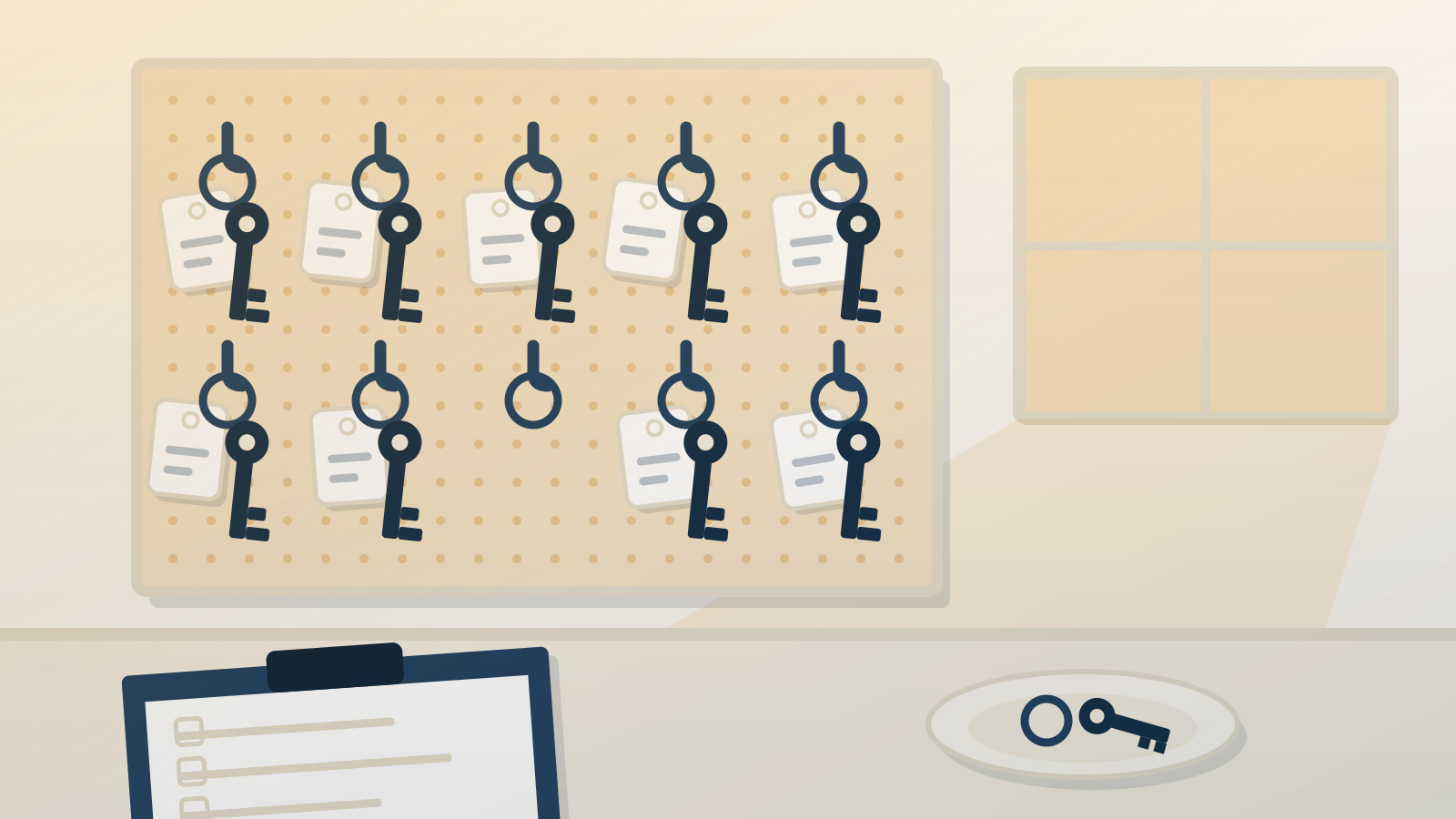
    In September, nobody does anything. The VBS login still works. It will still work next June, and the June after that, and the sticky note is still on the stand.

    This isn’t a story about a bad volunteer. She was excellent, and the church was lucky to have her. It’s a story about a pattern that almost every church repeats every summer without noticing: the people with the least training and the shortest tenure are handed access to the most sensitive information the organization holds, and nobody ever takes it back.

    The summer problem, stated plainly

    Vacation Bible School, day camp, sports camps, mission trips, summer interns, the youth trip. For six to ten weeks, a church’s headcount of people-with-access can double.

    They need real access — this isn’t a case where you can hand out nothing. The check-in table needs the check-in system. The registration volunteer needs the registration data. The intern posting daily photos needs the social accounts. The trip coordinator sometimes needs a card to buy fuel and groceries in another state.

    And three things are true of this group at the same time:

    Highest turnover. Many of them serve for one week and are never in the building again in that capacity. Some are students who leave in a fixed month.

    Lowest training. They are recruited late, briefed quickly, and often start on the first morning. Nobody schedules an orientation for a person doing one week of a volunteer job.

    Most sensitive data. Children’s names, ages, photographs, allergies, medical notes, emergency contacts, home addresses, and — in some systems — custody restrictions. There is nothing else in a church’s records more sensitive than that.

    Any two of those would be worth attention. All three, every summer, on a shared login, is the thing to fix — and it is genuinely fixable. This is not a technology problem; it’s a pattern that someone has to own.

    Named accounts, with an end date decided first

    Start here; everything else depends on it.

    A shared login costs you the same four things it costs on a shared office computer: nobody can tell who did what, one leaked password exposes everything, the password never changes because changing it means telling forty people, and every volunteer who ever served still has it.

    There’s a particular version of that for children’s ministry. If a parent raises a concern about how a check-out was handled, or a record was changed, or a photo was posted, a shared login means nobody can establish what happened. That protects nobody — least of all the volunteers, who all become equally unaccountable and therefore equally unclearable.

    Give each summer volunteer their own account, under their own name. Most church management and check-in systems allow unlimited or generous numbers of users, and the ones that charge per user often have a volunteer or limited role at a lower cost or none. Ask your vendor before assuming every extra person is a paid seat.

    If your system genuinely cannot do named volunteer accounts, write that down as a known limitation and raise it at renewal.

    The second half of the pattern is almost embarrassingly simple:

    Nobody gets access without a written end date, and the end date is written down before the access is granted.

    Not “we’ll remove it when they’re done.” That sentence has never once resulted in access being removed. A date. On a list. In the calendar.

    A one-page grid is all you need — a spreadsheet, a shared doc, a printed sheet in a binder. Five columns:

    Name · What they can get into · Start date · End date · Removed (initials and date)

    That’s the whole system. It converts a vague intention into a specific task with a name attached, and it gives you something to hand to an insurer or a board member who asks a fair question.

    Add one calendar entry — mid-September, titled Remove summer access, assigned to a specific person — and this problem is structurally solved for as long as somebody keeps doing it.

    The minimum permissions for the job

    The FTC’s guidance for businesses puts it as the principle of least privilege: each person should have access only to what they need to do their particular job. In a church that translates into a few concrete decisions.

    The check-in volunteer needs to check children in and out. She does not need to edit family records, view giving history, export the directory, or see the full membership database. Most check-in systems have a limited role for exactly this; find it and use it.

    The registration volunteer needs this summer’s registrations. Not the historical file, not the donor records.

    The intern posting photos needs to post. Most social platforms let you grant a person permission to publish without giving them the ability to change the password, remove other administrators, or delete the account. Use that level — and never hand over the account password itself.

    Almost nobody needs a payment card. If a trip leader genuinely does, a dedicated card with a low limit that gets canceled at the end of the trip is far better than a card tied to the operating account. Ask your bank about a virtual or single-use card.

    Two more, a minute each. Turn on multi-factor authentication — the extra code or tap after a password — for any volunteer account that can reach children’s data or money. Microsoft’s research finds it blocks more than 99.2% of account compromise attacks, and it is just as free for a volunteer as for the pastor. And remove the shared passwords from sticky notes on tablet stands; a printed card kept behind the table, changed after the season, is already an improvement.

    Fifteen minutes of orientation, and only three things in it

    You will not get a training session. You’ll get the first five minutes of the first morning, standing at a folding table. So decide in advance what the three things are.

    One: this data is not yours to share. Names, allergies, custody notes, and phone numbers stay in the system and in this building. Not screenshotted, not texted to a co-leader, not typed into a personal spreadsheet, not posted anywhere. “If you find yourself about to photograph the screen, stop and ask me instead.”

    Two: check-out is a security function, not a formality. The person collecting a child is matched to the record every time — when you know them, when there’s a line, when they’re annoyed about it. Custody restrictions are the reason the system exists. A volunteer told this once will hold the line; a volunteer who hasn’t will assume the tags are bureaucracy.

    Three: if anything seems wrong, tell this person. Point at a specific human being. An email that looks odd, a parent who seems agitated, a stranger in the hallway, a screen that logged you into somebody else’s account. Nobody is ever in trouble for asking.

    Then one line about photographs, because summer is when the photo problem happens: know which children have a photo restriction on file, and know that a group of happy kids is not a reason to skip checking. Photo consent deserves its own conversation with your leadership — who may photograph, what may be published where, and how a family opts out — and the summer programs are exactly when a vague policy gets tested.

    The phone in their pocket

    Here’s the modern wrinkle. Many check-in and ministry apps run on personal phones, and a volunteer installing the app on her own device is often the fastest way to get the table staffed.

    That’s a reasonable trade, but be clear-eyed: church data is now on a phone the church doesn’t control, that gets handed to a younger sibling, that may have no screen lock, and that will be traded in eventually.

    Three things make it acceptable:

    Say plainly that the app must be signed out of and deleted when the season ends — and put that on the same one-page grid, with a tick box, so it’s a task rather than a hope.

    Ask for a screen lock and current updates on any phone used for ministry data. That’s not intrusive; it’s the same thing the volunteer’s bank asks of them.

    Prefer a church-owned tablet where you can. One inexpensive tablet in a stand that never leaves the building removes almost all of this, and it’s a strong candidate if you’re buying one device this year.

    And when a volunteer’s access ends, remember that removing their account in the system is what actually matters — an app left on a phone with no working login is just an icon.

    September, and how to say it without awkwardness

    Put the calendar entry in now, whatever month you’re reading this in. Mid-September, one person, thirty minutes:

    Work down the grid and remove every access whose end date has passed. Initial the last column.

    Check each system’s user list separately — check-in, church management, email, the giving platform, the shared drive, the social accounts, the photo library. People collect access in places the grid doesn’t know about.

    Look specifically at the social accounts. They’re the most often forgotten, and the most public when it goes wrong.

    Change any password that was shared during the season, and any that was on a card at a table.

    Then tell the volunteers you did it, in the thank-you note — which brings us to the one thing that actually stops churches from doing any of this.

    It isn’t ignorance. It’s that removing someone’s access feels like an accusation, and in a community built on trust, accusing a faithful volunteer of anything is unthinkable.

    So take the implication away by saying it before it can be inferred, at the start rather than the end:

    “Your access runs through the last week of August. That’s how we do it for everyone, including the pastor’s family. It’s not about trust — it’s that we keep the children’s information locked down to whoever is actually serving right now.”

    Nobody has ever been offended by that. What people are offended by is being singled out, and a policy applied to everybody singles out nobody.

    A church that can say we give named accounts, limited to the role, for a fixed period, and we remove them in September is a church that can answer questions from parents, insurers, and its own board with something better than reassurance. A two-week volunteer with a two-week account is not distrust. It’s ordinary practice, and it protects the volunteer as much as the child.

    What to do this week

    Open the user list for whichever system holds your children’s check-in data and read it top to bottom. Look for names you don’t recognize, accounts called things like VBS or Camp or Front Desk, and people who left. That takes fifteen minutes, and it is usually a surprising fifteen minutes.

    Then make the grid — name, access, start, end, removed — even if the only thing on it today is next summer. And put one entry in the church calendar for mid-September with somebody’s name on it.

    Seasonal access is one strand of a larger question about who can reach what. MissionDefend’s free assessment asks plain-English questions about how your organization handles email, donations, member data, and accounts — including who has access to what, and who removes it — then returns a baseline score with a ranked list of what to fix first.

    No spam and no sales calls — just one email when it’s live.


    MissionDefend provides cybersecurity readiness assessments and educational guidance for churches and nonprofits. It is not a penetration test, a security audit, legal advice, or an incident response service.

    Sources: Federal Trade Commission, Protecting Personal Information: A Guide for Business; Microsoft, mandatory multifactor authentication guidance.